Choose a setup method
Omi supports four setup paths:
OAuth and MCP keys grant access to the same hosted endpoint. OAuth is the default for the
new cloud-connector UI; manual MCP keys remain available as a fallback.
Connect from the Omi macOS app (Recommended)
On the Omi home screen, find Use omi memory anywhere, choose a destination, and follow the connection card:- ChatGPT: choose ChatGPT / Codex, then add Omi from its approved ChatGPT listing. ChatGPT opens Omi’s OAuth consent flow; you do not need to create or paste a key.
- Claude: choose Claude / Claude Code, then Claude (cloud). Omi opens Claude’s custom-connector flow with the registered public OAuth client.
- Claude Code, Codex, OpenClaw, and Hermes: Omi generates an MCP connection key and offers guided local setup. Expand Manual installation to copy the server URL, key, command, or configuration yourself.
- ChatGPT custom app: expand Developer-mode fallback only if your workspace cannot use the approved directory listing.
Hosted Server with OAuth
Use the hosted server URL as the remote MCP URL:2025-03-26) and advertises OAuth metadata at:
- ChatGPT
- Claude
The preferred path is Omi → Use omi memory anywhere → ChatGPT / Codex → ChatGPT
(cloud). Add Omi from the directory page and approve the OAuth consent screen.For the advanced developer-mode fallback, use:
- Connection / server URL:
https://api.omi.me/v1/mcp/sse - Authentication: OAuth
- OAuth Client ID:
omi-chatgpt-prod - OAuth Client Secret: leave blank
- Token auth method:
none - Authorization URL:
https://api.omi.me/authorize - Token URL:
https://api.omi.me/token
Manual MCP-key fallback
Use a manual key for clients that support a bearer header but cannot use Omi’s registered OAuth flows.Find or create an MCP key
In the current macOS UI, open Use omi memory anywhere, choose Claude Code, Codex,
OpenClaw, or Hermes, and expand Manual installation. Omi generates the connection
key and shows a masked Your key row with a Copy button.You can also use the cross-platform Omi app: open Settings → Developer Settings,
scroll to MCP Server, and create a key in its API Keys list. The complete
omi_mcp_... value is shown only when it is created, so copy and store it then.Your key will look like: omi_mcp_...MCP keys are distinct from Developer API keys. An
omi_mcp_... key authenticates the
hosted MCP endpoint and /v1/mcp/... REST routes. An omi_dev_... key authenticates
/v1/dev/... routes and will not authenticate MCP.Configure Your Client
Use the following connection details:
- Server URL:
https://api.omi.me/v1/mcp/sse - Authorization:
Bearer omi_mcp_...(your generated key) - Transport: Streamable HTTP (MCP
2025-03-26)
Manual hosted-client configuration
- Claude Desktop / Claude Code
- Cursor
- Codex
- OpenCode
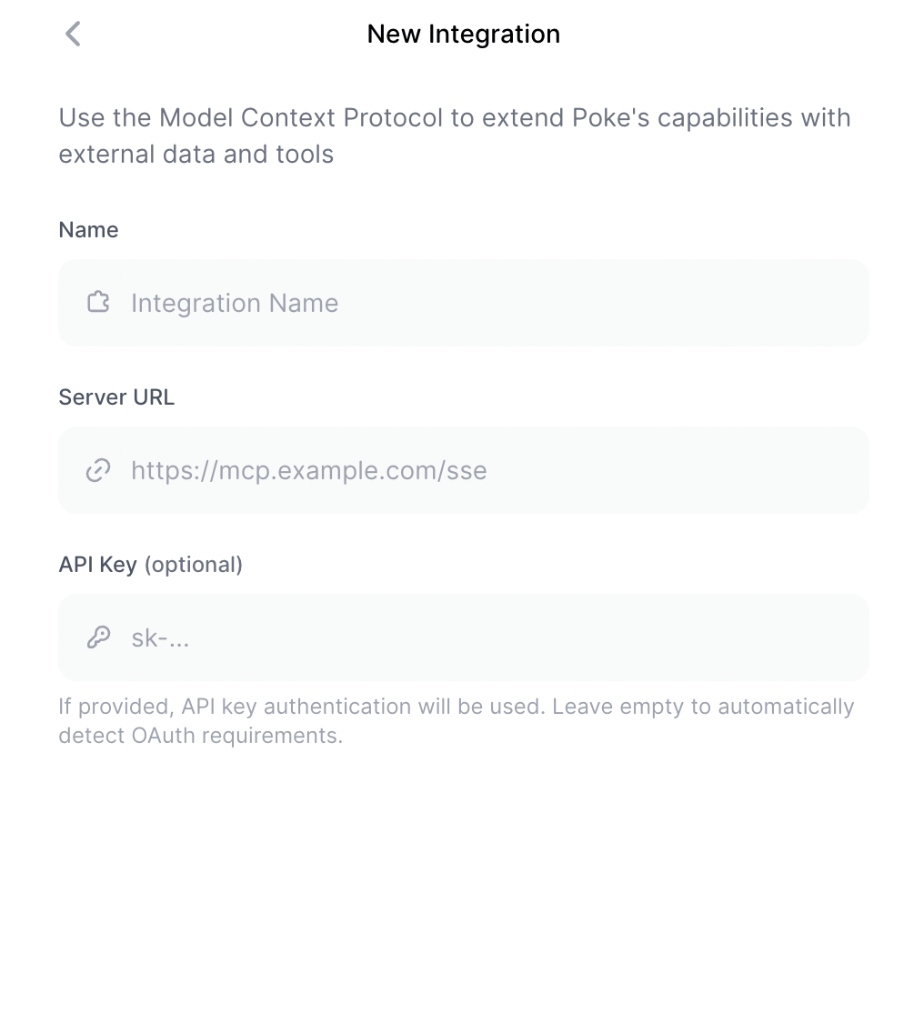
- Poke
- OpenClaw / Hermes
- Custom Client
Claude’s cloud connector supports OAuth as described above. For a manual-key fallback,
add this to Config file location:
claude_desktop_config.json:- macOS:
~/Library/Application Support/Claude/claude_desktop_config.json - Windows PowerShell:
$env:APPDATA\Claude\claude_desktop_config.json - Windows cmd:
%APPDATA%\Claude\claude_desktop_config.json
Local stdio server with uvx or Python
Run the MCP server locally over the standard input/output transport.uvx downloads and
runs the published package without a separate installation. Python 3.11.6 or newer is
required.
- uvx
- Python
Add this to your MCP client’s local-server configuration:Install uv first. The
OMI_API_KEY value can also be supplied with each tool call.Generate the MCP key using either location in Manual MCP-key fallback.
Developer API keys that start with
omi_dev_ will not authenticate MCP requests.Local stdio server with Docker
If you prefer to run the MCP server locally:Generate an API Key
Generate an MCP key using either location in
Manual MCP-key fallback.
Install Docker
Install Docker. We recommend OrbStack for macOS.
Configure Claude Desktop
Add to your
claude_desktop_config.json:OMI_API_KEY environment variable:
Custom Backend URL
If you are self-hosting the Omi backend:Only needed for self-hosted Omi instances. The default URL points to the
official Omi API.